
When you first use the QR code scanner feature in the ndau wallet app (either when Sending ndau or when using WalletConnect), the wallet app will ask you for permission to use the camera.
If you deny this permission request, your camera will not work when trying to scan a QR code. And your ndau wallet app may crash or close if you try to scan a QR Code.
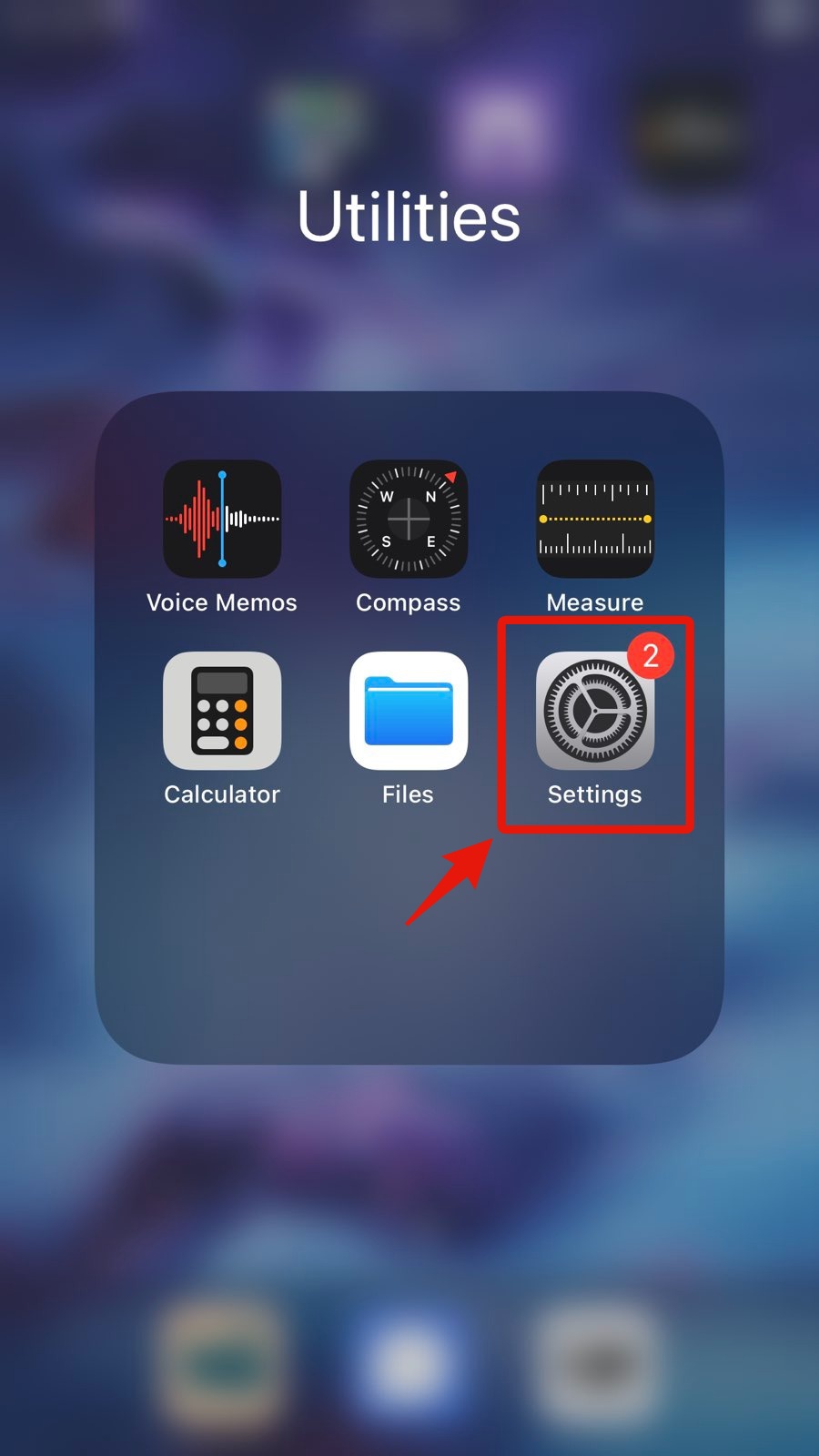
This is easy to fix. In IOS, first open your Settings app.
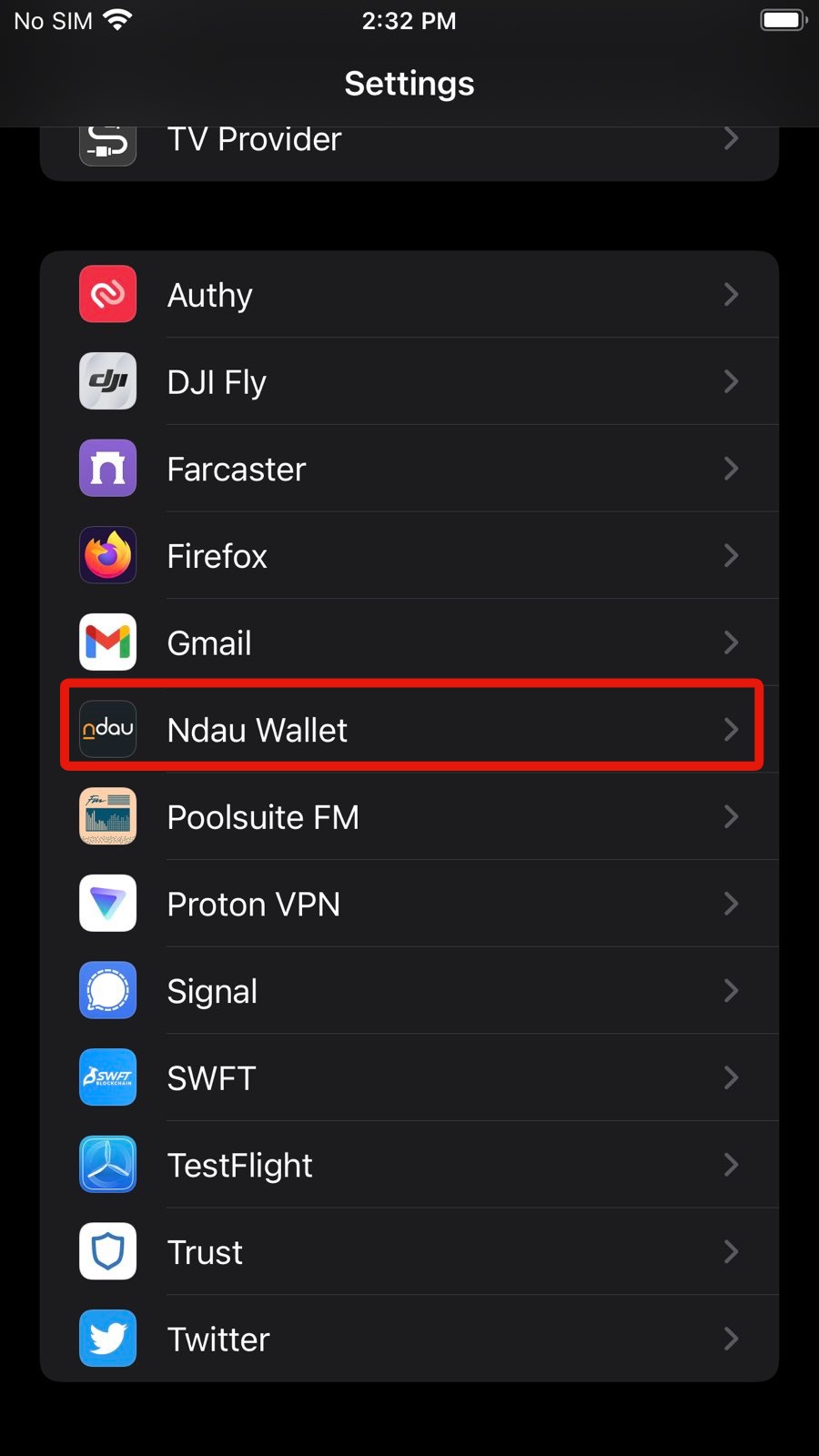
On the next screen, scroll down until you see the ndau wallet app. Click on it.
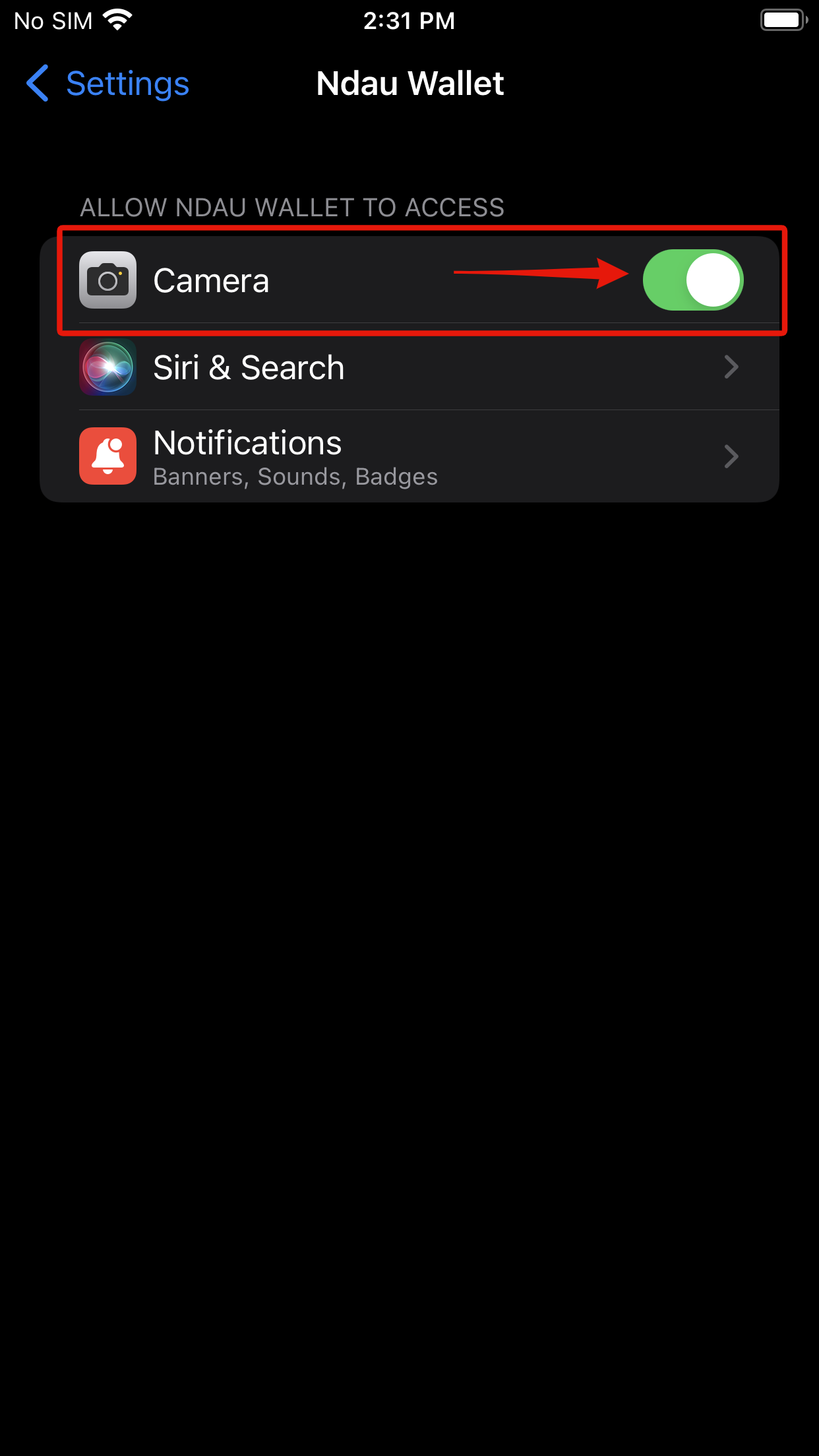
On the next screen, click on the switch next to Camera and make sure it is Green (enabled).
Congratulations! The problem is now resolved.
Next time you open up the WalletConnect screen or the Send ndau QR code scanner, you’ll see the camera working properly.
🤖 On Android
Method 1 — Through the app list (works everywhere):
- Open Settings
- Tap Apps (or Apps & notifications)
- Find and tap the app you want
- Tap Permissions
- Tap Camera
- Choose:
- Allow while using the app (recommended)
- Ask every time
- Don’t allow
Method 2 — Through Privacy (Android 12+):
- Settings → Privacy
- Tap Permission manager
- Tap Camera
- Select the app → choose Allow
🔧 Quick tips
- If you don’t see the app, open it once — iOS/Android only show apps that requested camera access.
- If it’s still not working:
- Force close the app and reopen it
- Restart your phone
- Check Screen Time / Parental Controls (iOS) or Privacy dashboard (Android)