
Here’s how to scan QR codes and Approve Signature Requests on the NDAU-REVO Conversion Portal.
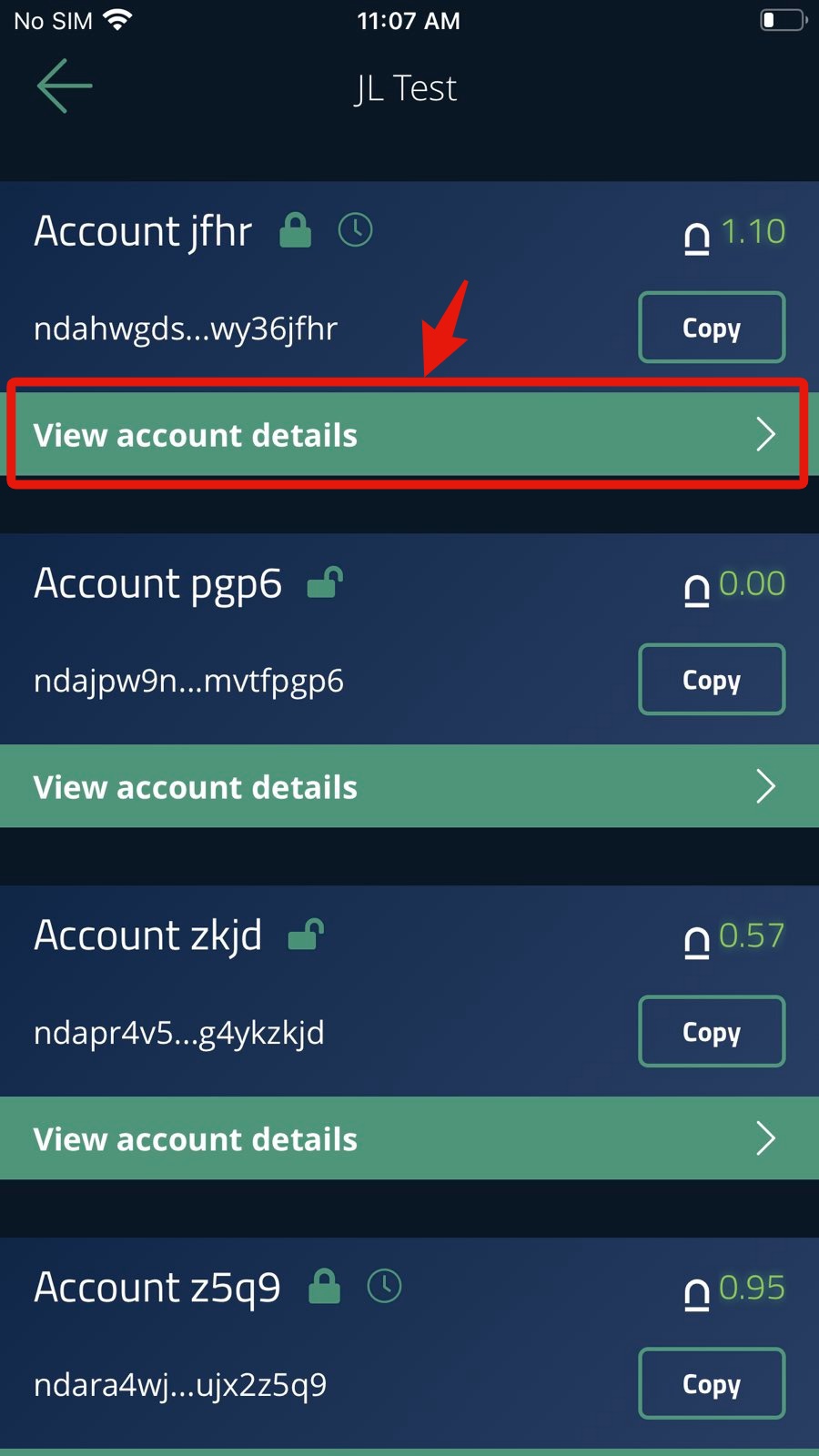
1) Open your ndau wallet app and click on “View accounts details” for the specific account address you wish to convert.
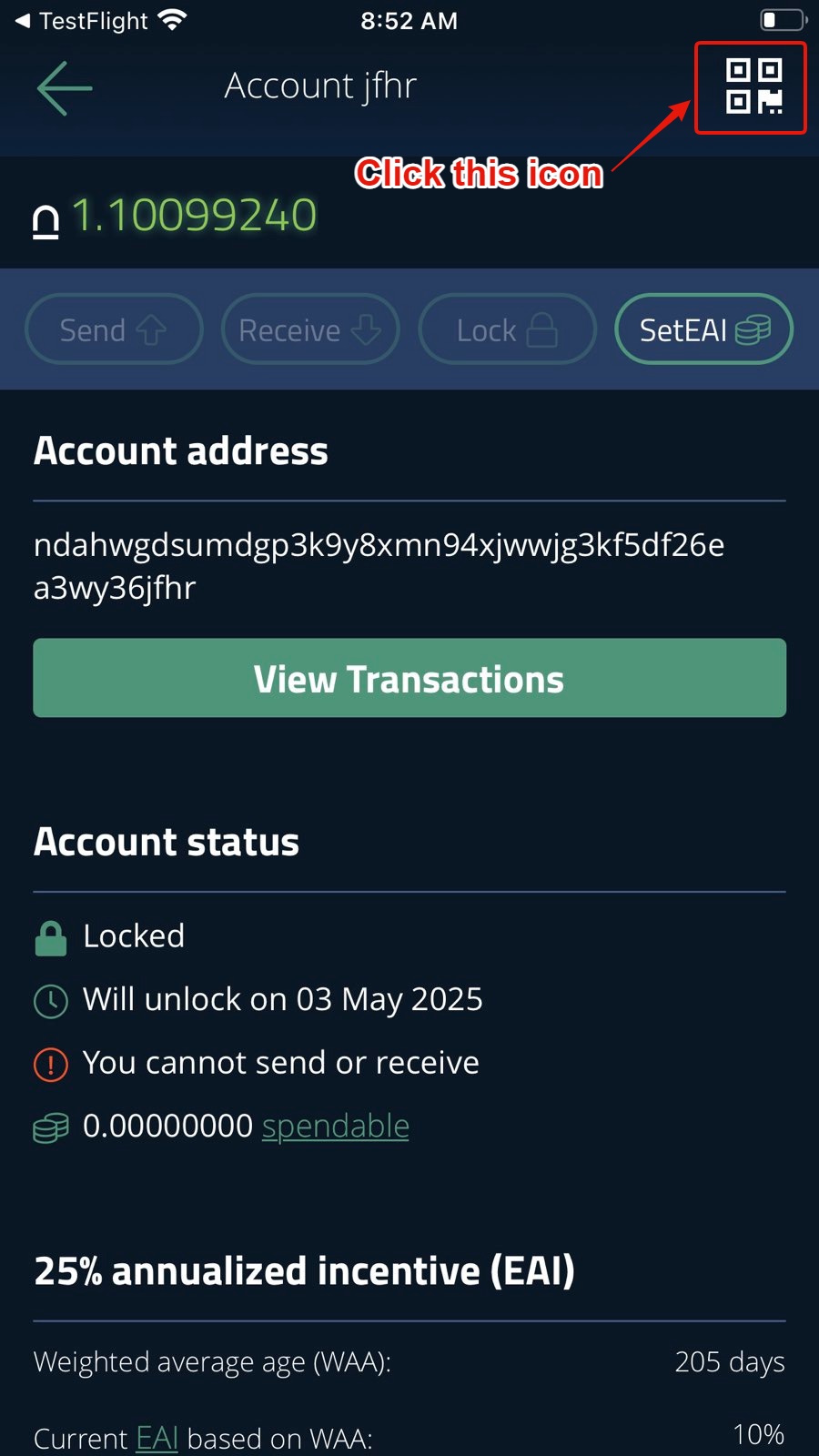
2) On the account details page, click on the icon in the upper right of the screen.
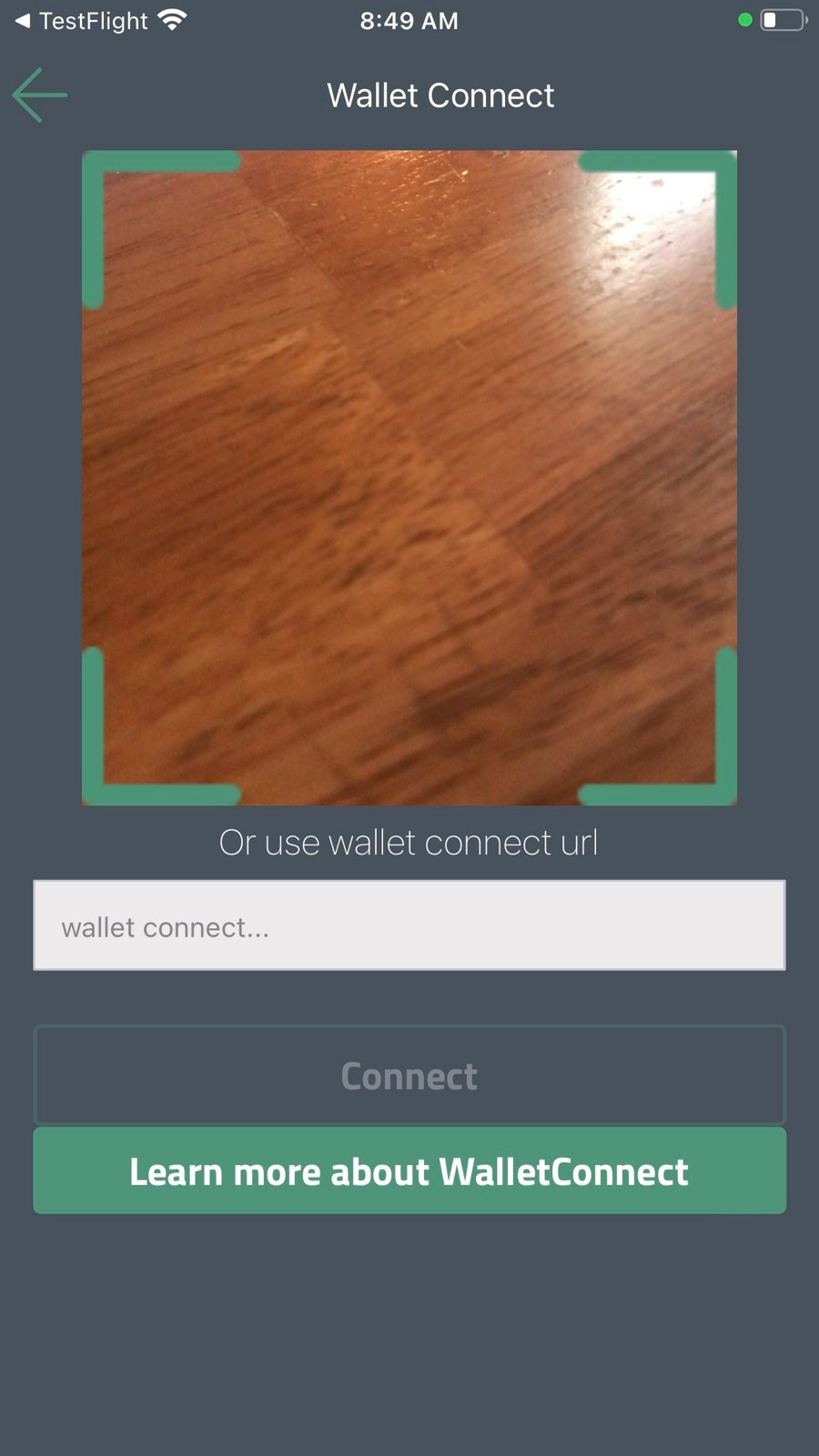
This will turn on the camera on your phone and open a QR code scanning screen in the ndau wallet app.
If you do not see the QR Code icon, that means you are using an outdated version of the ndau wallet app and need to update it.
Please see this knowledgebase article to learn how to update to the latest version of the ndau wallet app.
3) On the NDAU-REVO Conversion Portal, click on the “Connect NDAU Account” button.
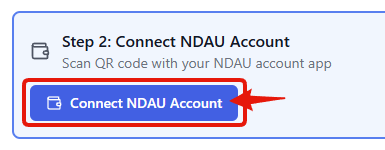
A QR code will then appear on the NDAU-REVO Conversion website.
4) Scan the QR code on the NDAU-REVO Conversion Portal with your ndau wallet’s QR code scanning screen.
Move your phone so the camera can see the QR Code. The ndau wallet app will automatically scan it once the QR code is in frame and focused.
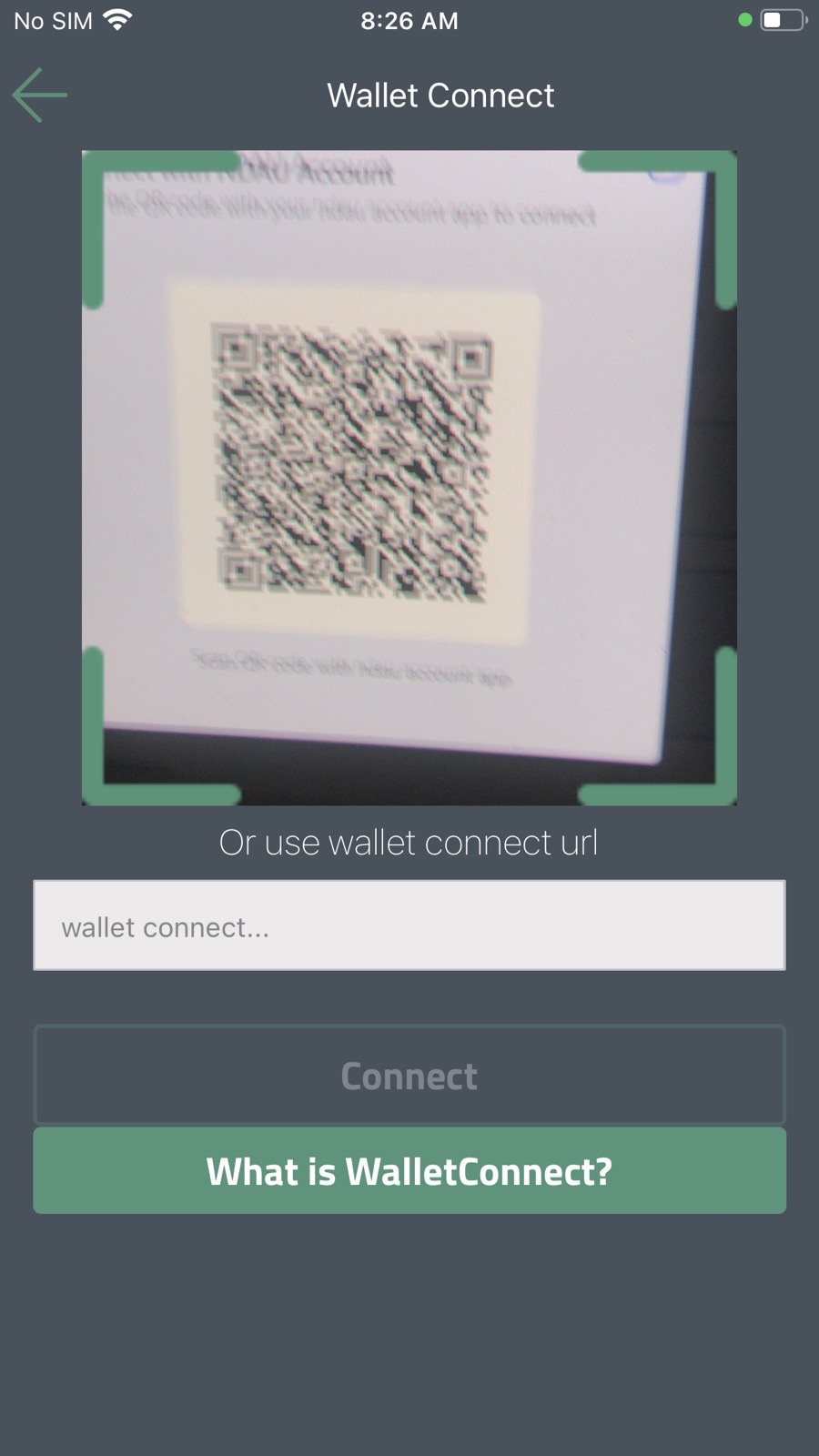
5) A Signature Request screen will appear on your ndau wallet app.
Click the Approve button on the Signature Request screen to approve your login.
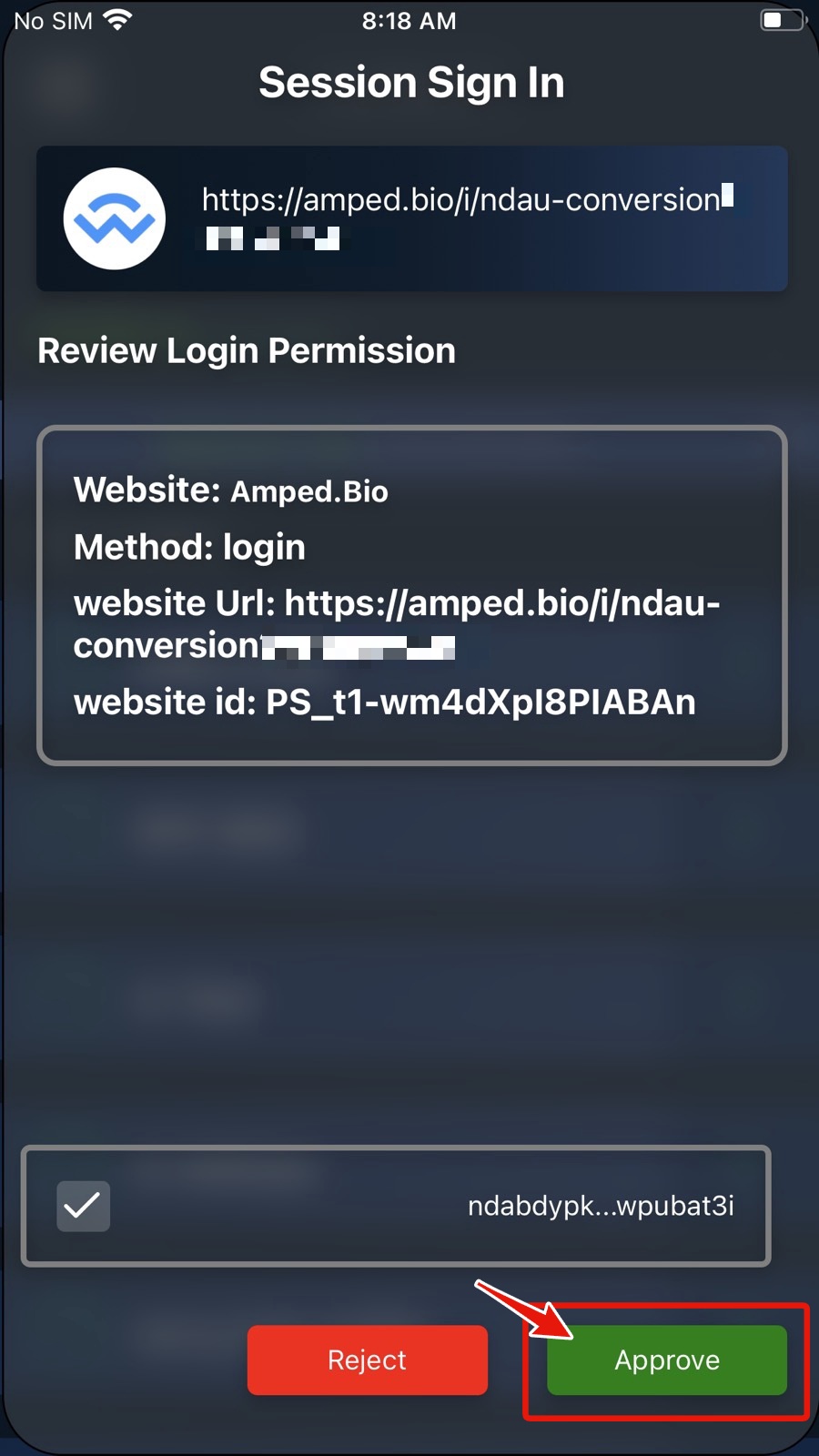
6) Continue the conversion process in the NDAU-REVO Conversion Portal and approve additional Signature Requests.
You have now successfully logged in to the NDAU-REVO Conversion Portal using a specific ndau account address in your ndau wallet app.
You will now be able to proceed and convert the ndau in that specific account to REVO.
IMPORTANT: As you continue to interact interact with the NDAU-REVO Conversion Portal, other Signature Request screens will automatically open on your ndau wallet app.You must keep your ndau wallet app open so you can see and approve these additional pop-up screens.